Visitor Engagement: Delight visitors, capture data & grow sales during the wait

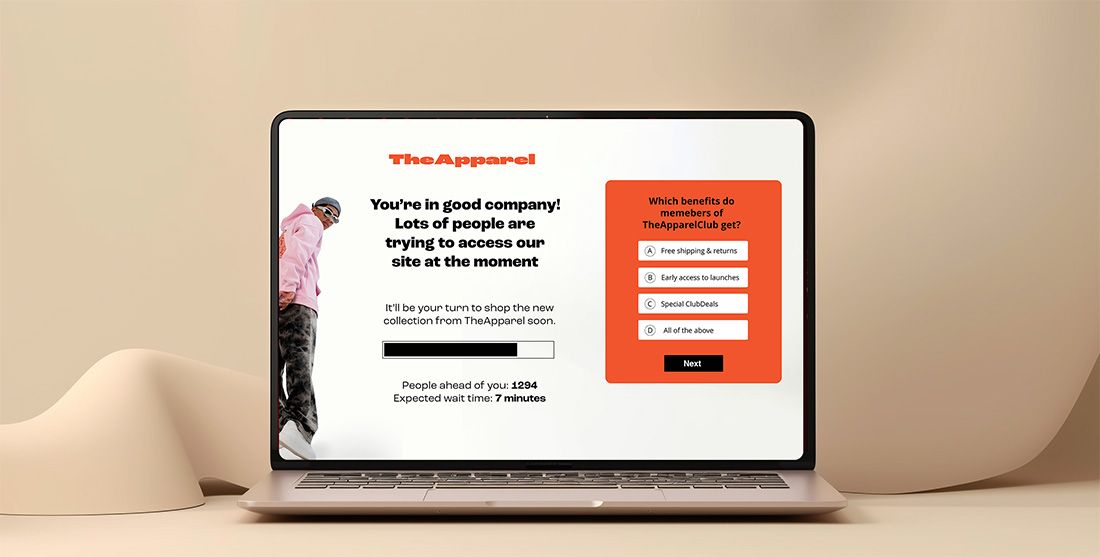
Add quizzes, polls, and email sign-up forms directly to your waiting room to engage high-intent visitors and capture valuable zero-party data. Visitor Engagement’s no-code builder makes it easy to create interactive journeys tailored to your goals. Turn waiting time into actionable insights, mailing list growth, and higher purchase intent.
If you’re using a virtual waiting room, you’ve already managed something most organizations dream of: generating so much demand you need a solution to control it.
You’ve cut through the digital noise and created a brand moment—a sale or registration that has captured the attention of thousands of engaged and motivated visitors.
Brand moments like these represent an opportunity unlike any other. An opportunity not just to increase sales in the short-term, but also to engage visitors, collect insights, and drive loyalty for future campaigns.
Queue-it’s new Visitor Engagement feature helps organizations capitalize on this opportunity. It enables you to create and add interactive, engaging quizzes, polls, and email sign-up forms directly to your waiting rooms. It lets you turn demand into valuable zero-party data, all while creating a better experience for visitors.
Visitor Engagement is a no-code, self-service tool that lets you build short, interactive journeys inside the waiting room. With it, you can engage visitors with polls, quizzes, promotions, and email sign-up forms that help you collect valuable insights, grow mailing lists, promote products, and personalize future campaigns.
The flexibility of Visitor Engagement allows it to be configured and customized in limitless ways to fit any industry, use case, or business goal. But the three core ways customers have used it in beta testing are:
- Collecting zero-party customer data & driving sign-ups: Capturing data from visitors on everything from preferences, to demographics, to attribution, to behavior; and collecting and associating email addresses with this data for personalization, retargeting, membership or mailing list growth, and CRM enrichment.
- Cross-selling & promoting offerings: Guiding visitors through product offerings, highlighting membership benefits, promoting add-ons or merchandise, and collaborating with partners or sponsors to showcase their offerings.
- Improving customer experience & building brand affinity: Creating fun, on-brand quizzes and polls that tell your brand story, deliver a shared experience, educate customers about your event, and turn anticipation into affinity.
Teams often combine these three use cases in a single widget: starting with a fun question, then highlighting products, capturing preferences, and finally encouraging mailing list sign‑ups, often with a discount or exclusive benefit.
RELATED: Access a Live Demo of The Visitor Engagement User Experience
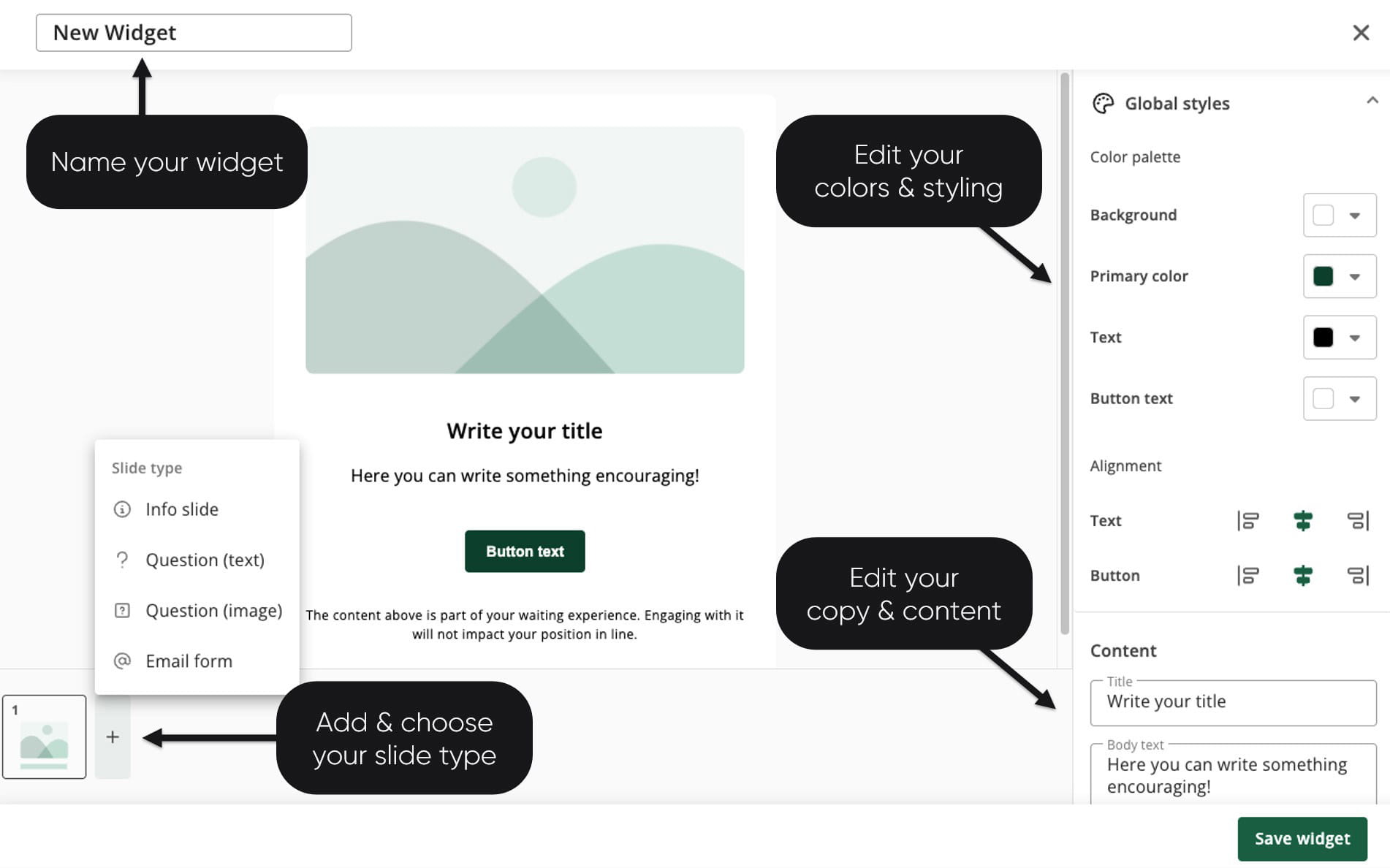
Visitor Engagement's no-code, self-service builder allows you to easily create, design, and edit your widgets’ content, colors, alignment, and display settings.
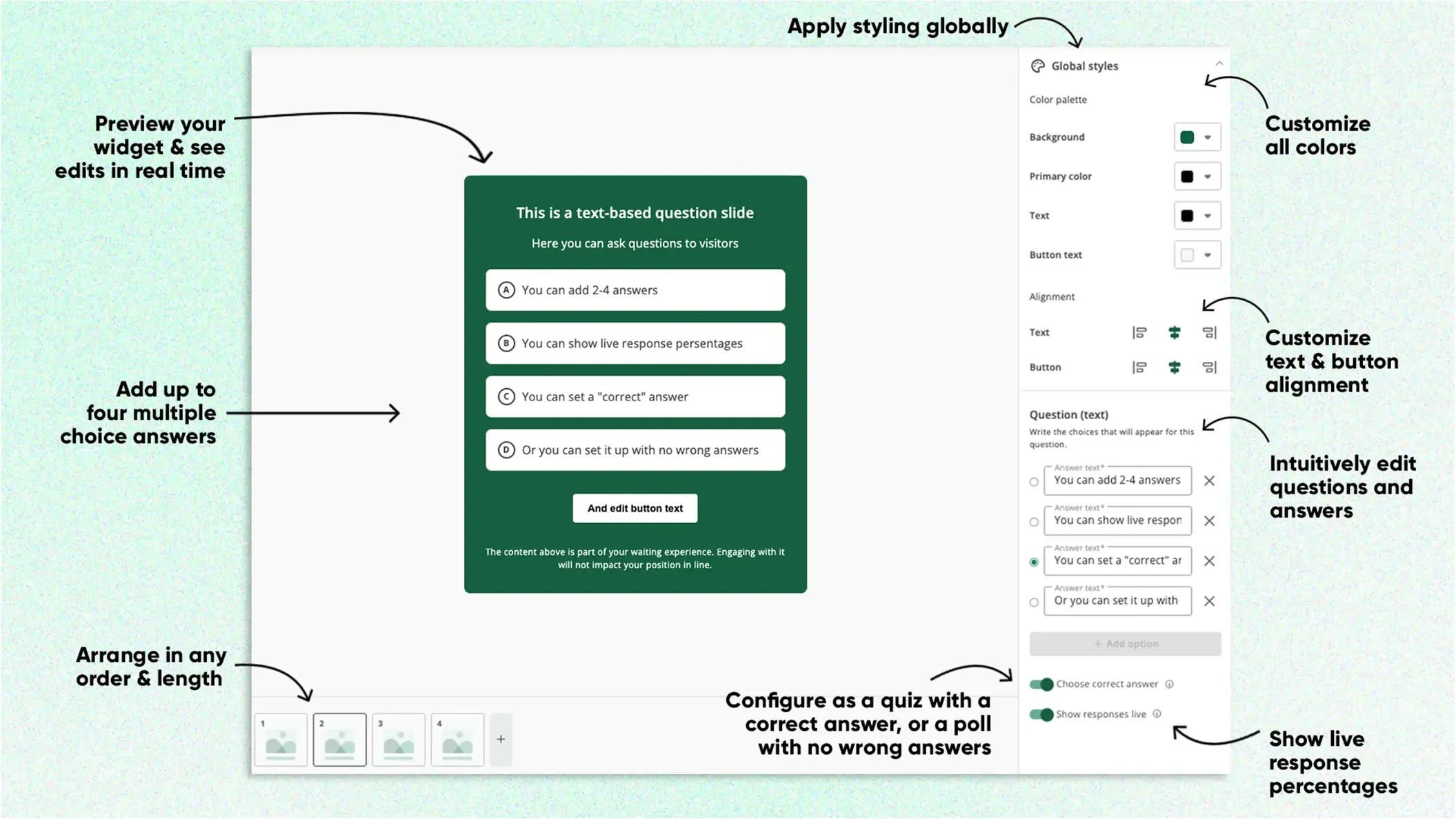
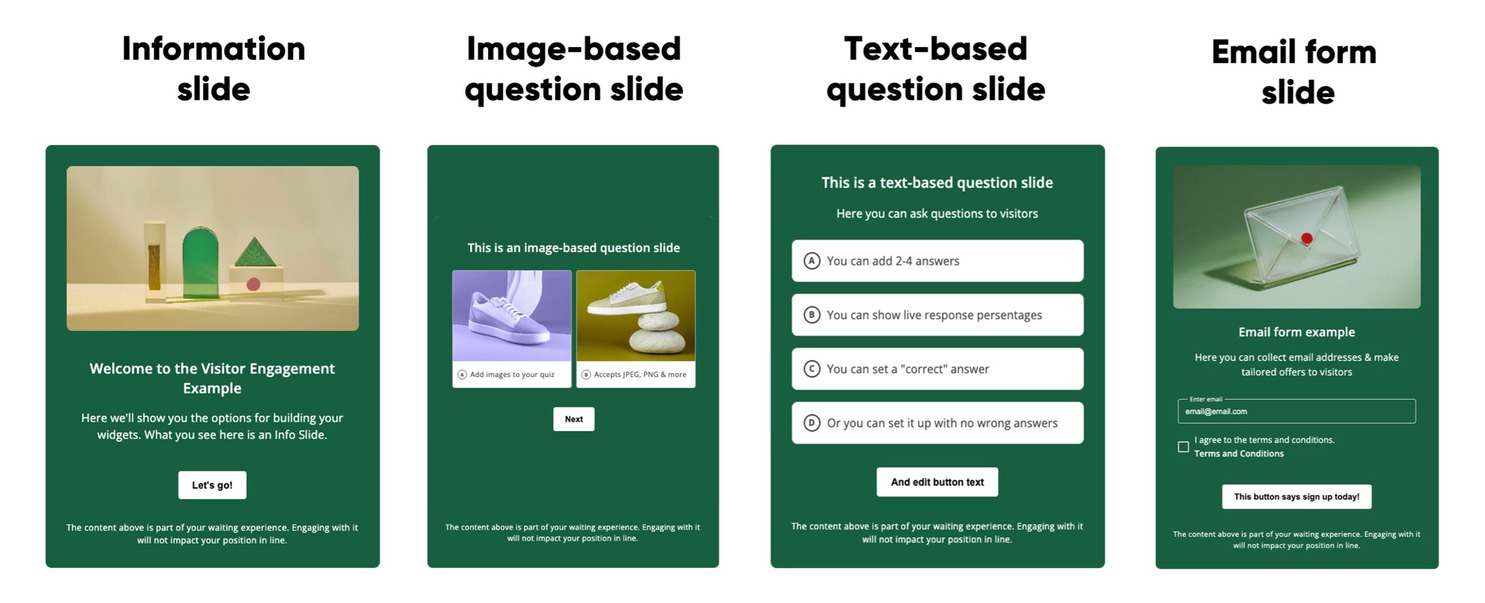
You get access to four slide types, which you can configure and arrange in any order:
- Info slide: A slide with an image, a header, and some text. Customers often use the info slide as a “Welcome” slide to kick off the experience, or a “Thank you” slide to end the experience. You can also insert it at any point in the visitor journey to explain answers or add context.
- Question slide (text): A text-based question slide with up to four multiple-choice answers. You can use question slides as a quiz with one “correct” answer (e.g. “what year did we first run this event?”), or a poll with no right or wrong answers (e.g. “where did you hear about this event?”). You can also choose to show live result percentages to all visitors after they make their selection.
- Question slide (image): An image-based question slide with up to four multiple-choice answers. Like the text question slide, you can use these for quizzes or polls, and you can choose to show live results to all visitors.
- Email form slide: An email sign-up form slide with built-in consent and options for custom copy, imagery, and data collection. Customers often include the email form at the end of the Visitor Engagement flow to build mailing lists and grow membership programs. For visitors who add their emails, you can associate their response data with their email address for personalization and retargeting.
These four slide types are your Visitor Engagement building blocks, which you can use to build a new, more engaging visitor journey.
Visitor Engagement is offered as part of Queue-it’s new Visitor Experience Package, which bundles the feature together with Custom Themes. For more information on how you can get started with the Visitor Experience Package, contact your Customer Success Manager or book a demo with one of our experts.
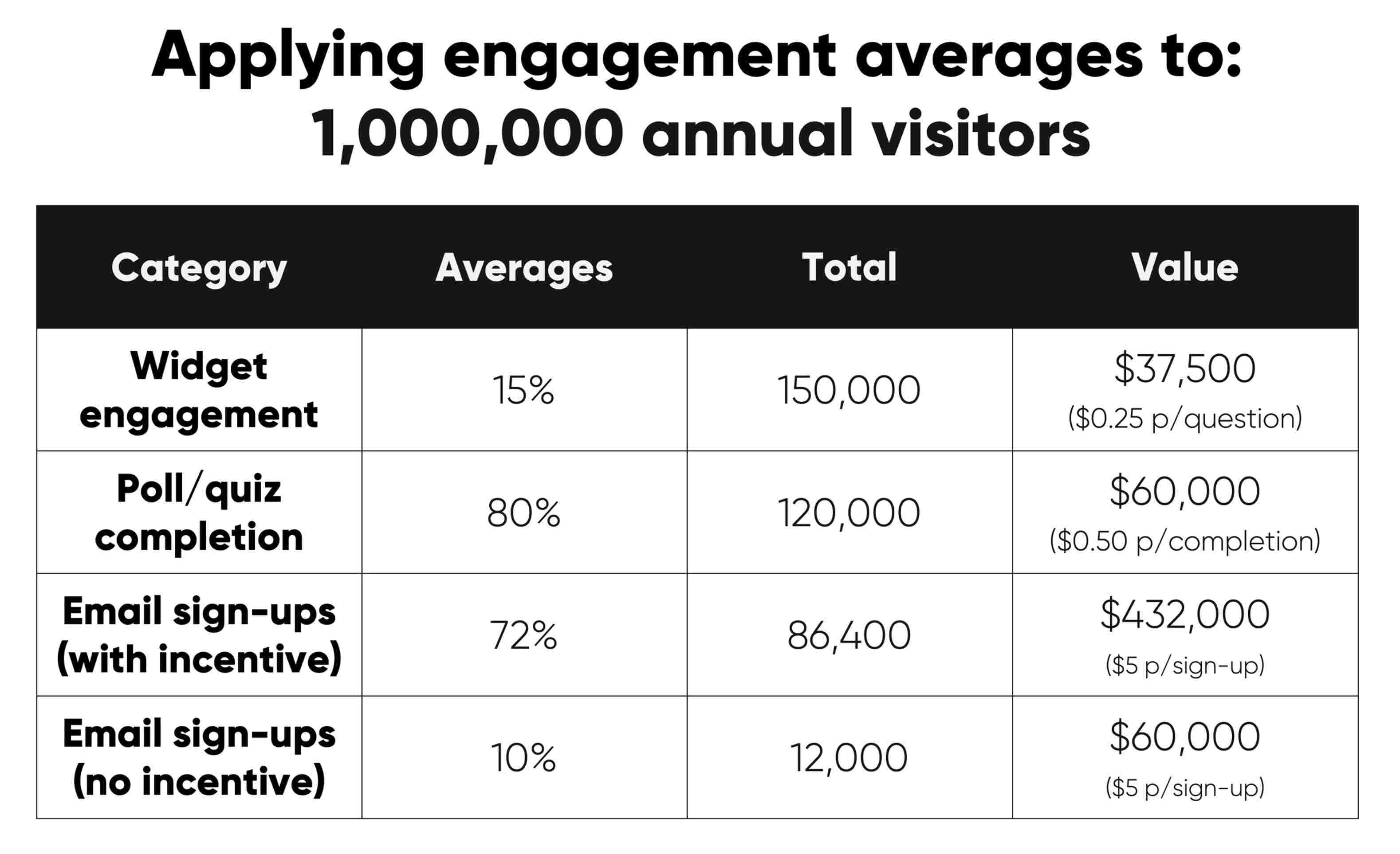
Across the 20+ events and 2+ million visitor interactions recorded during beta testing, Visitor Engagement saw industry-leading response rates from curated groups of in-market visitors.
- Widget engagement: 15% of total unique visitors
- Widget completion: 80% of total engaged visitors
- Email sign-up (with incentive): 72% of total visitors who completed widget
- Email sign-up (no incentive): 10% of total visitors who completed widget
When applied to the traffic already passing through your waiting room, these engagement rates quickly translate into real value.
The same surge of demand that once meant idle waiting time can now generate large volumes of customer insights and high-intent email sign-ups. Instead of paying for survey responses or list growth elsewhere, Visitor Engagement lets you capture that value directly from a curated group of visitors you already know are interested in your brand.
The video below shows the full process for designing your Visitor Engagement widget, adding it to your waiting room, previewing the visitor journey, and downloading the data. Under it, the step-by-step process is explained with screenshots and explanations.
Once you've activated Visitor Engagement, you can find the builder in the “Visitor Experience” sidebar of the GO Queue-it Platform.
From there, select “Create Widget” to start designing your widget.
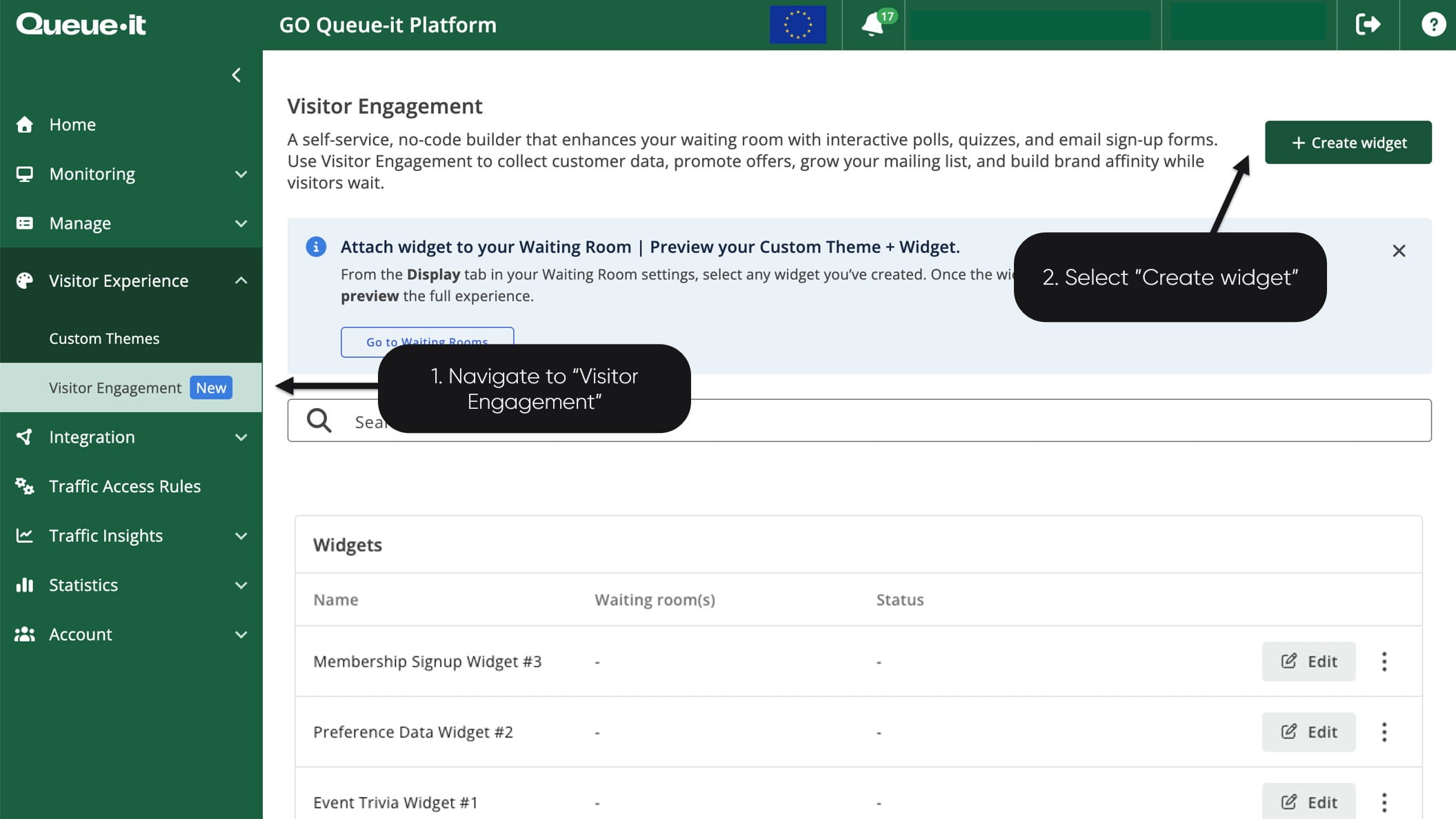
Once you’re in the Visitor Engagement builder, you’ll be able to:
- Select your slide type
- Create your slide order
- Customize the colors & styling
- Add your custom copy & imagery
If you’re adding an email sign-up form, you’ll need to set up proper consent. You can do this from the email form slide by adding and configuring the input fields (email + name), and including consent checkboxes and linking to terms.
When you activate Visitor Engagement, we’ll help you set up your custom confirmation email. Currently, any changes to this confirmation email must be made via Queue-it support.
Give your widget a unique and recognizable name, so it’s easy to remember for step two. When you’re satisfied with your widget, click “Save widget”.
Note that you can edit your widget at any point prior to deployment. Once you've deployed it and collected an answer, you can no longer make changes. However, you can duplicate the widget and continue to edit the duplicate version.
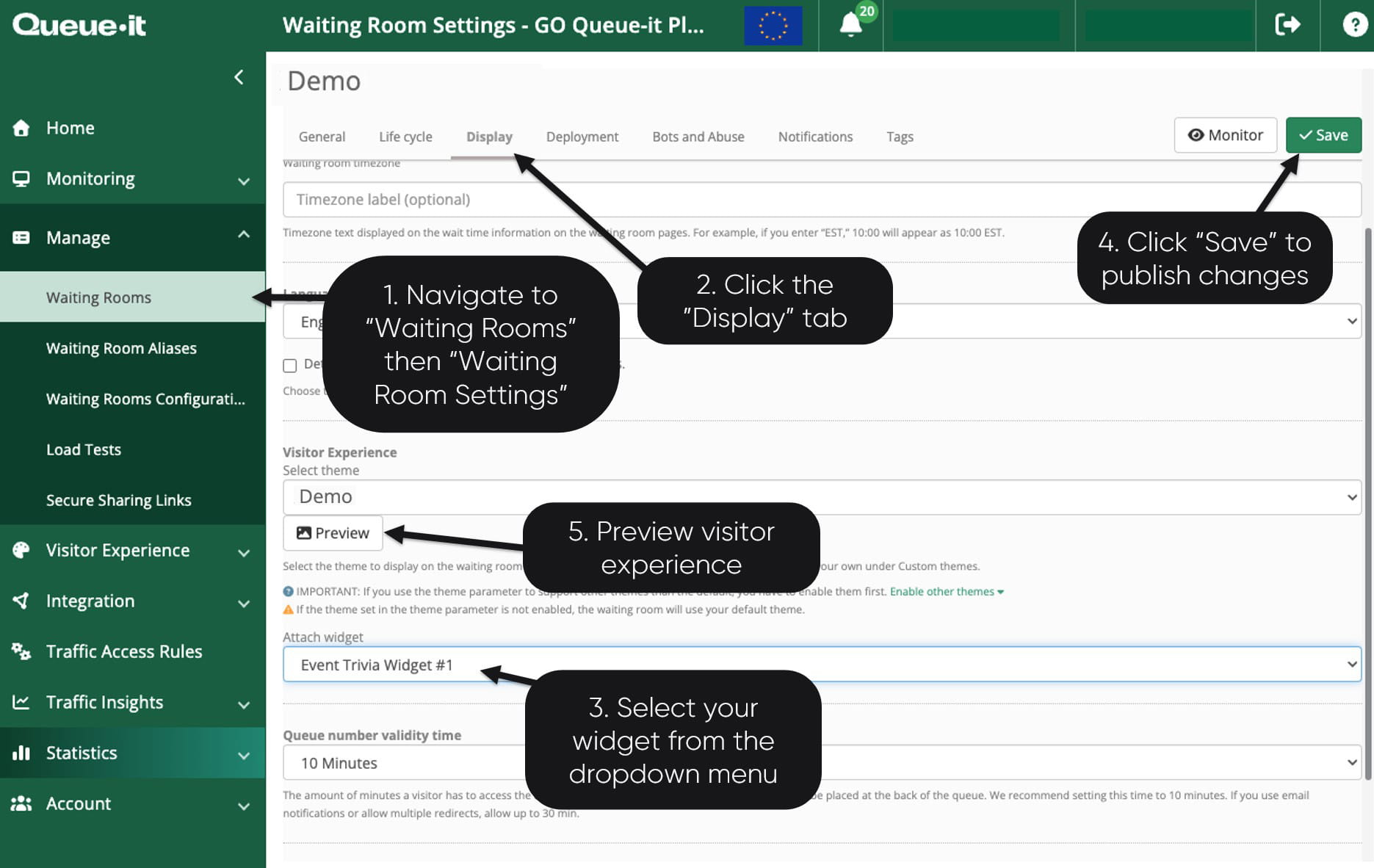
Once you've finalized your Visitor Engagement widget, you can attach it to any waiting room by navigating to “Waiting Rooms”, then to “Waiting Room Settings” for the waiting room you’d like to add it to.
Go to the “Display” tab and scroll down to “Visitor Experience”. Here you’ll see “Attach widget” and you can select your desired widget from the dropdown menu.
Click “Save” in the top right to save your widget to your waiting room. Then you can preview the full visitor experience (your Custom Theme and Visitor Engagement widget together) by clicking “Preview”.
If you’re happy with the appearance, you’re ready to go live with your new waiting room.
If you’re unhappy with how the widget is displaying on the Custom Theme (i.e. it’s in the wrong position), you can reach out to Queue-it support to have it moved or edited.
Once you’ve added to the widget to your waiting room, you can run your event just like any other. Visitors will see and interact with the widget as they pass through the waiting room.
By default, Visitor Engagement is shown on both the Pre-Queue and Queue. Visitors can only go through the widget journey once, to ensure data consistency.
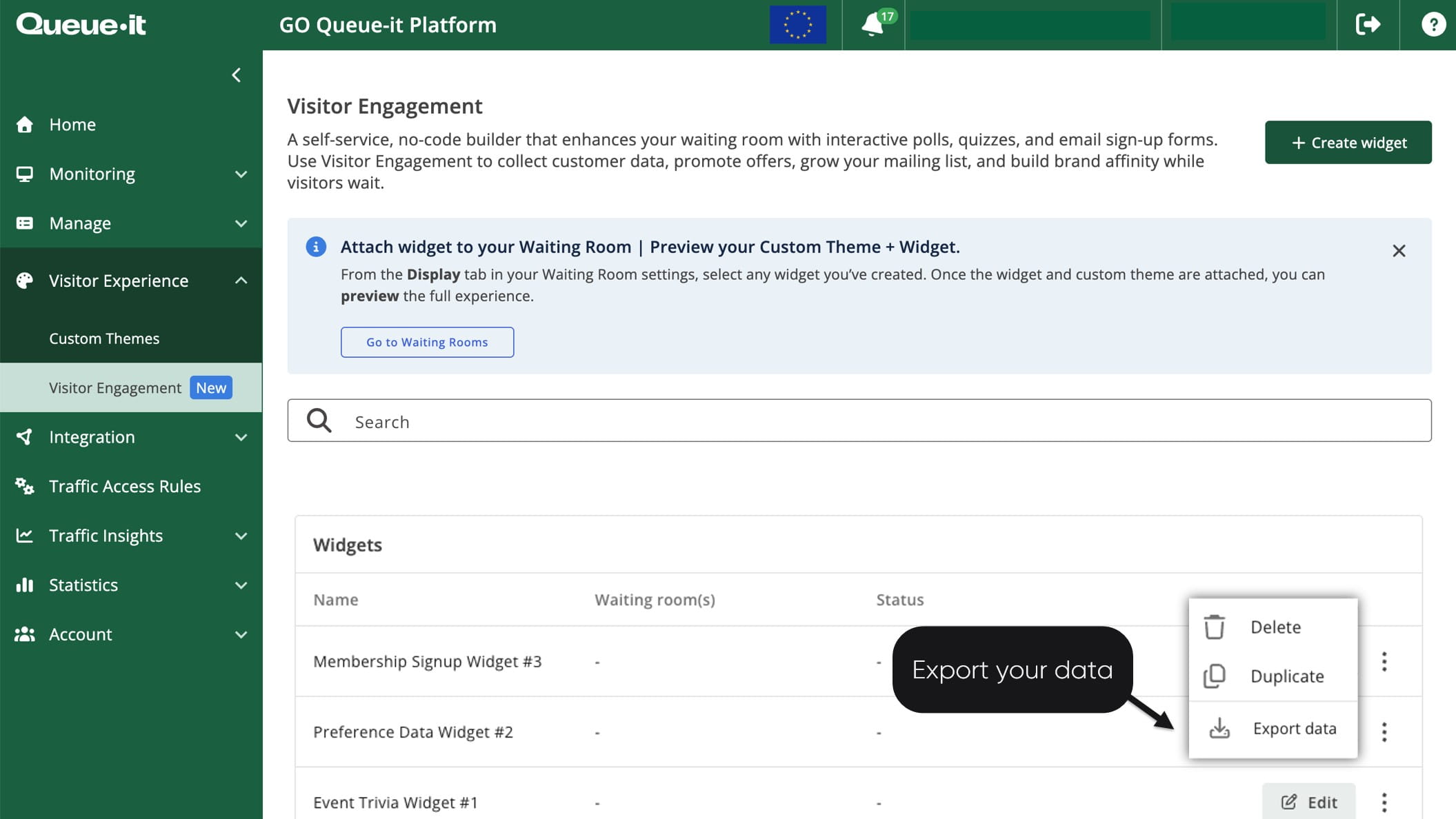
When your event is finished, you can download response data and email addresses in the “Visitor Experience” tab by selecting the three dots next to your widget, then clicking “Export”.
Data exports come in CSV format for easy analysis in Excel or your business intelligence tools.
You get all response data grouped by user, and this data is associated with email addresses if the user inputs their email and gives consent.
Visitor Engagement is built for full compliance and designed to operate reliably at the scale of Queue-it’s virtual waiting room. This means you can collect zero-party data with:
- Full GDPR compliance
- Full ownership & control over data
- Built-in & customizable consent collection
- No third-party tracking or cookies
- No impact on core waiting room functionality
The feature has been load tested with over one million responses per minute and has already been used for an event with over five million total visitors. It’s designed specifically for fault-tolerance at scale, with a minimal blast radius.
Visitor Engagement enables you to capitalize on the opportunity that peak traffic represents. It both enhances the visitor experience and supports zero-party data collection. It offers limitless possibilities for customization to suit any use case or business goals, from building brand affinity, to cross-selling products, to collecting data and driving mailing list signups.
The user-friendly builder allows you to design and deploy your widgets quickly and easily, with litte-to-no need for support. Clean data exports let you analyze responses and enrich your understanding of your customers.
Visitor Engagement is offered as part of Queue-it’s new Visitor Experience Package, which bundles it together with Custom Themes. For more information on how you can get started with the Visitor Experience Package, contact your Customer Success Manager or book a demo with one of our experts.